Trending
While Riot tries to tackle as many bugs in Valorant as they can, some errors occur before the players can even enter the game and there is not much Riot can do about that.
While Riot can tackle issues like update speeds being unrealistically slow and VAN 152 errors, this specific issue is out of their reach.

To resolve this issue, you can do the following steps:
1. Open your "Run" command prompt by pressing Windows Key + R
2. Search "services.msc" and hit Enter
A window with all of the services available on your device will appear.
4. Look for "vgc" and double-click it
5. Stop the service by clicking "Stop" under "Service Status"
6. Set the Startup Type to "Automatic"
7. Start the service again
8. Click "Apply" and then "Okay" and close the window
9. Restart your PC
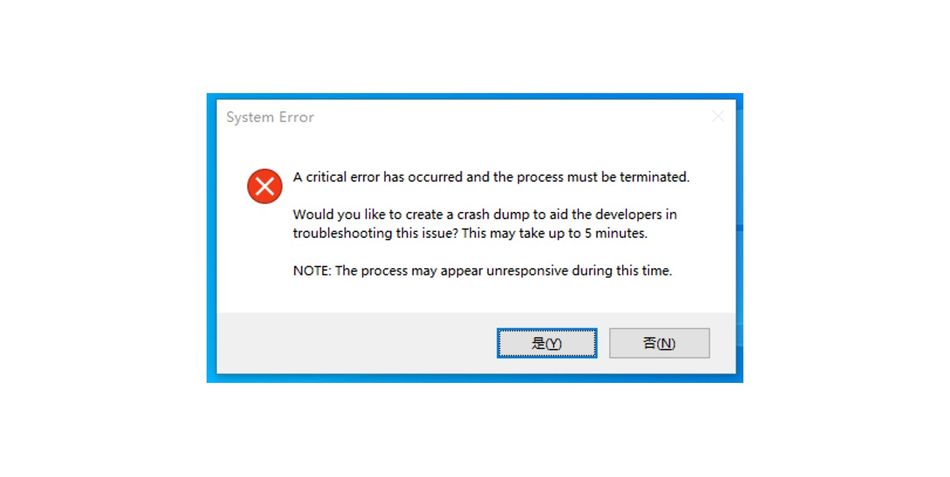
The second method to solving this issue is:
1. Head into the Local Disk (C:)
2. Open the "Riot Games" folder → "VALORANT" → "live" → "ShooterGame" → "Binaries" → "Win64"
3. There you will locate the "VALORANT-Win64-shipping" file
4. Right-click it and select "Properties"
5. Find and open the "Compatibility" Tab
6. In the Compatibility mode section, tick the "Run this program in compatibility mode for:" option and select your operating system (Windows 10 or 11)
READ MORE: VALORANT 5.10 Patch Notes - Agent updates, Bug fixes and more
7. Tick the "Run this program as an administrator" option in the Settings section
8. Click "Apply" and then "Okay" and close the window
9. Restart your PC
DON'T MISS:
- Rainbow Six Siege - Black Ice Removed from Alpha Packs
- Rainbow Six Siege - Ghosteyes squad revealed, battlepass rework and more
- Valorant - What skins will the Give Back bundle contain?
- All operators who are part of Rainbow Six Siege's Wolfguard squad
- Rainbow Six Siege - New Maverick NieR Replicant Elite Skin
- Rainbow Six Siege - List of all playable maps for each game mode
- Escape from Tarkov - How to fix stuttering while shooting