Trending
AMD's GPU software that handles drivers and offers additional services like screenshot capture, recording and streaming can be pretty handy when it works.
However, some of its issues can result in the software refusing to work properly, meaning you can't record in-game footage anymore for reasons unknown.
Thankfully, the fixes are known and here are the two most common methods of resolving this particular problem.
Change Radeon software settings to stereo
This one is extremely quick as it only requires on settings change and you can immediately start a game to check whether the fix worked.
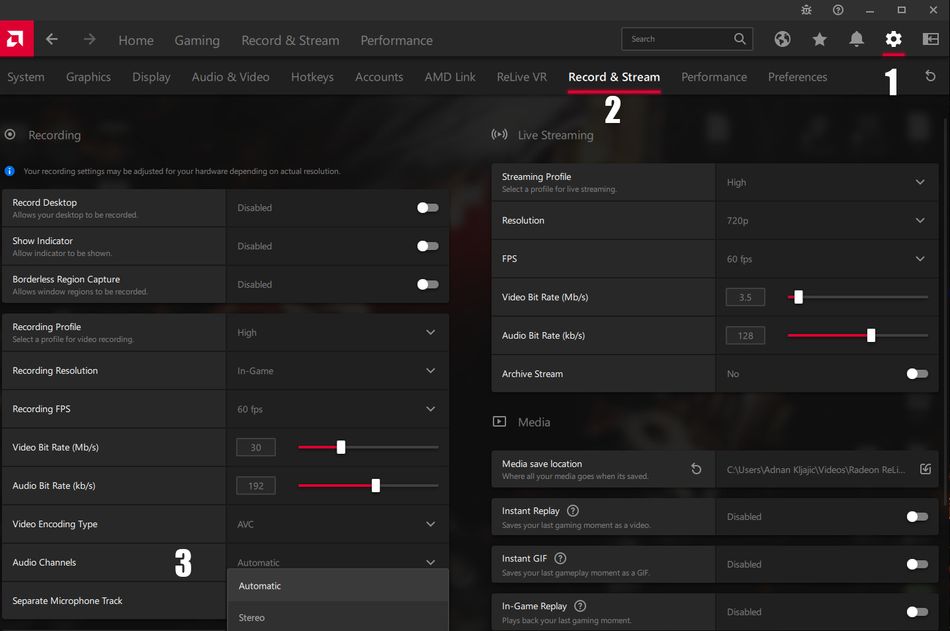
Right-click anywhere on the desktop, and choose the AMD Software option to open its control panel.
From there, go through the following steps:
- Click the cog in the upper right corner to open the settings
- Click Record & Stream in the horizontal menu just below
- Find Audio Channels on the left side of the AMD control panel
- If it's set to Automatic, click on it and choose Stereo
Factory reset
If the stereo setting didn't do the trick, you will need to revert the software to factory settings.
This second method may sound scary but it's really not. The factory reset is quick, will just revert the software's settings and will not mess with your installed driver.
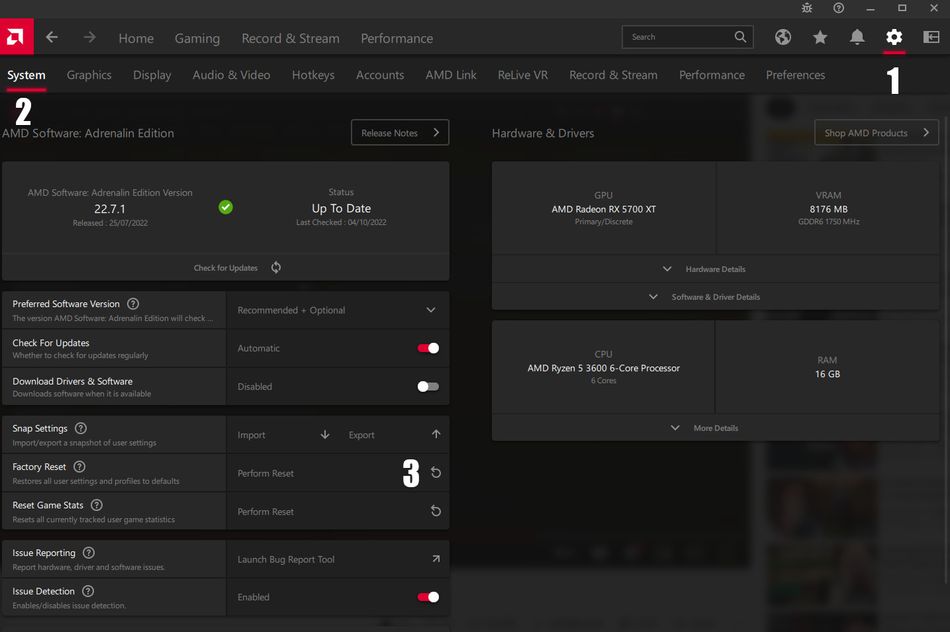
Open the AMD Software by right-clicking on the desktop and choosing it from the drop-down menu.
From there, go through the following steps.
- Click the cog in the upper right corner to open the settings
- Click System in the horizontal menu just below
- Find Factory Reset on the left side of the screen
- Click the Perform Reset option
AltChar - Latest news:
- Blizzard can't make up their minds if Overwatch 2 servers are loaded or DDoS-ed
- Marauders: Stuck on Connecting to backend issue? Here is a fix
- Valorant patch buffs Skye, Reyna and Yoru, nerfs Kay/0
- Company of Heroes 3 has been delayed to jam-packed February
- CD Projekt Red have just announced two new Witcher games and plans for Cyberpunk 2077 sequel