Trending
Even though Rainbow Six Siege changes with every season, it seems like the errors have stayed the same throughout the years. Simple errors like friend invites or challenges not working can ruin the fun for everyone, we are here to make sure that that doesn't happen.
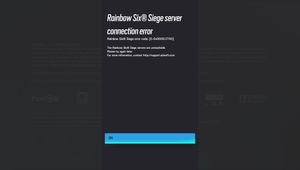
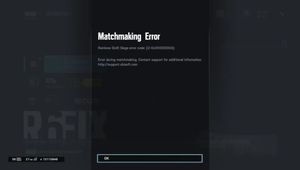
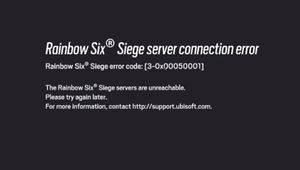
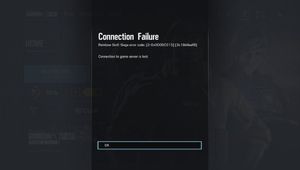
Error code 6-0x00001000 means your connection to the matchmaking service has timed out, implying that you have been trying to connect for too long and the connection broke. Here is what you can do.

How to fix it
1. Your first step should be trying to join matchmaking again and restart your game. If these don't work, don't worry.
2. Check the server status (Maybe it's not you, maybe it's them). You can check for any outages with Ubisoft Help or over on the official Twitter page of Rainbow Six Siege.
3. Reset your network hardware. Perform a full power cycle on your router to rule out any hardware issues.
3. Update Windows. Sometimes out-of-date software or operating systems might cause fatal errors to the games or the connection so keeping everything up to date is highly advised.
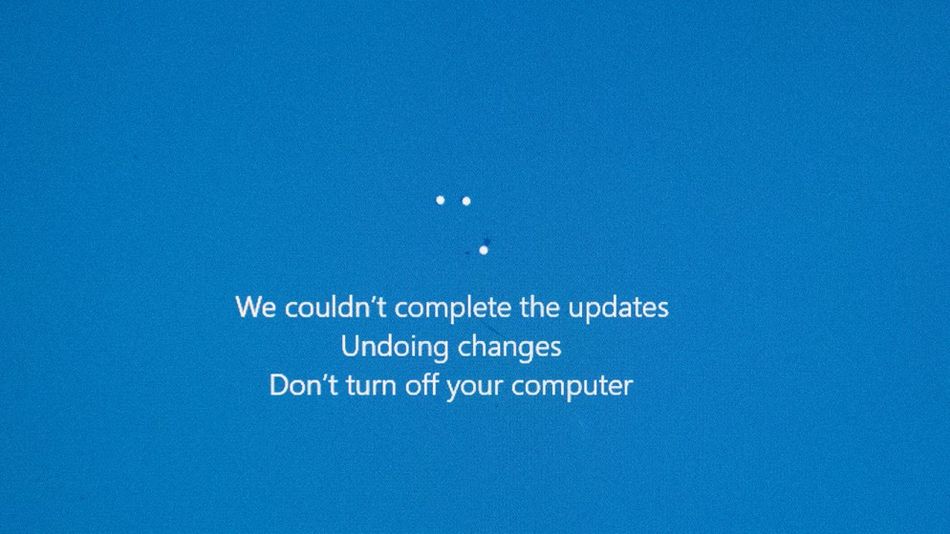
Additionally, updating your operating system will also update network drivers that may be required to successfully connect to the wider network.
4. Check software conflicts. If your game runs poorly or you experience network issues, a possible cause could be software conflicts.The easiest way to test this is to perform a clean boot of Windows. This will restart your system with only essential services running, allowing you to rule out issues with potentially conflicting software.
To perform a clean boot, hold down the power button on your PC
5. Perform a traceroute. A traceroute maps the internet traffic between your computer and an internet destination and is often used to identify connectivity problems or delays.
6. Perform a ping test. A ping test is used to check how long your current connection takes to transmit packets of data.
If there is any issues with your connection or internet, steps 5 and 6 would let you know.
- Rainbow Six Siege: What is XIM and does Mouse Trap detect it?
- League of Legends 13.15 Patch Notes: Prestige Soul Fighter Shaco, Kai'sa nerf and more
- Valorant's Champions 2023 Anthem is called Ticking Away
- Valorant 7.02 patch notes: Esports Hub, bug fixes and more
- Valorant: List of all chat commands and shortcuts you can use