Trending
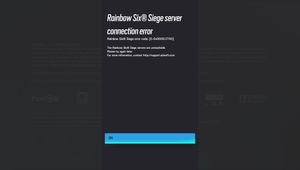
Error code 2-0x0000d00a is yet another matchmaking error where Rainbow Six Siege players get kicked out of the queue while trying to get into a game. Many have reported that this happens to the whole lobby and not just one single player.
Ubisoft has brought light to this issue on their page and offered some solutions that players can use before jumping ship and uninstalling and reinstalling the game.
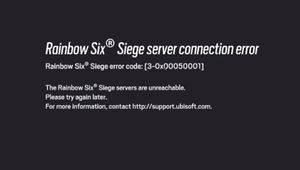
Ways to fix error code 2-0x0000d00a
1. Ensure that there are no signal interferences, such as air conditioning equipment running or any form of electronic installation being performed
2. Ensure you have the right Wi-Fi standard type. To check which type your router is currently using, contact your ISP provider
3. Check server status over on this page
4. Update Windows and reset network hardware
5. Check software conflicts or restart your computer
6. Perform a trace route.
A trace route maps the internet traffic between your computer and an internet destination and is often used to identify connectivity problems or delays.
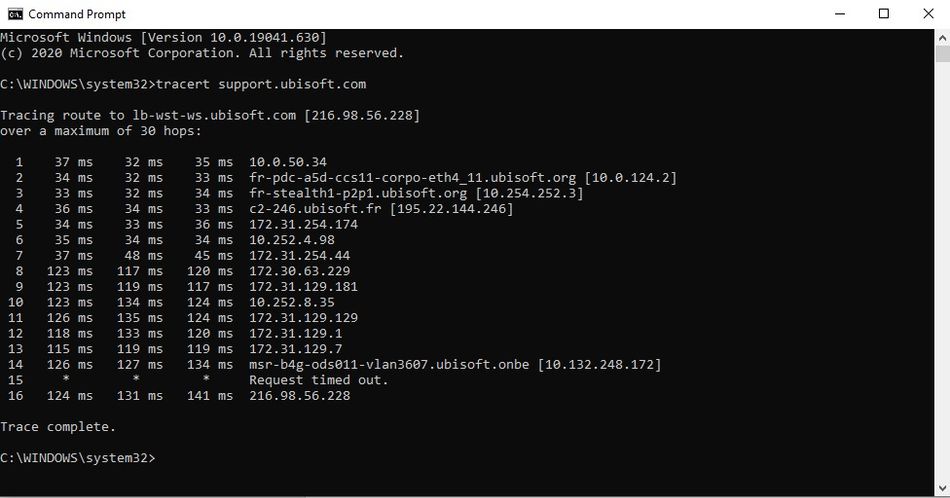
To perform a trace route:
- Open the Start Menu and search for ‘cmd’
- Open the Command Prompt
- When prompted, type ‘tracert’ followed by a space and the URL you want to test
- Press the Enter key
The command prompt will then show you all the addresses that are connected to your internet and how high their ping is
If you do not feel comfortable performing a trace route, you may go ahead and do method 7
7. Perform a ping test
A ping test checks how long your current connection takes to transmit packets of data and can be performed on this site or through your Command Prompt.
To perform a ping test:
- Open the Start Menu and search for ‘cmd’
- Open the Command Prompt
- When prompted, type ‘ping’ followed by a space and the URL you want to test
- Press the Enter key
- Rainbow Six Siege - How to fix mouse stuck on screen
- Is there aim assist in the console version of Rainbow Six Siege?
- Cyberpunk 2077 Phantom Liberty expansion starring Idris Elba gets a stunning cinematic trailer
- Valorant patch 7.04 - Jett, Astra, Breach and Skye get massive nerfs
- Cyberpunk 2077: Phantom Liberty is not a PC melter but it will increase system requirements
- Cyberpunk 2077 elaborates on vehicle combat feature