Trending
There seem to be many issues emerging on PlayStation 5 with players who have played Rainbow Six Siege and Spider-Man: Miles Morales. Players who have experienced this issue with Spider-Man claimed that the issue occurred when they would get past the 90% completion threshold.
Ubisoft do offer their own fix where you have to exit the game and re-enable the cloud save and overlay options, and then once you boot up the game, you should receive a prompt asking you which save you would like to use. Selecting the local save option will also update the cloud save and fix the issue.

How to fix “Couldn’t sync your saved data due to conflict”
If Ubisoft's method does not work, there are other things you can try:
Check Your Internet Connection: Ensure that you have a stable and active internet connection. Sometimes, synchronization issues can be caused by a weak or intermittent connection.
Sync Manually: If your game has a manual sync or upload option, try using it. This can force a manual synchronization of your game data.Check for Cloud Save Services: If your game supports cloud saves (e.g., Steam Cloud, Xbox Cloud, PlayStation Plus Cloud), make sure you're logged into the correct account and that the cloud save service is active.
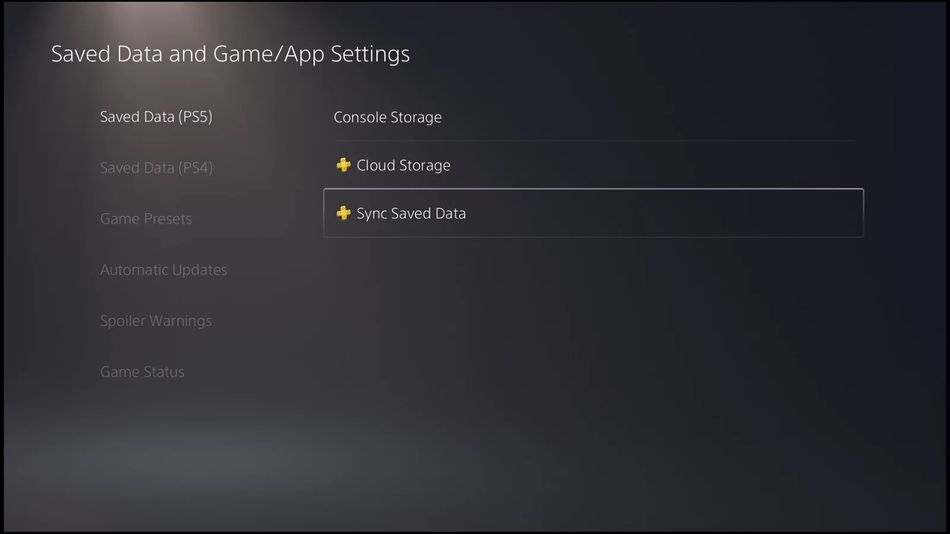
Disable Conflicting Overlays: Some game clients like Steam, Discord, and other similar apps may have overlay features that can interfere with game saves. Try disabling these overlays and running the game.
Contact Support: If the issue persists and you've tried all the above steps, consider contacting the game's support team or the platform's support (e.g., Steam Support, Xbox Support, PlayStation Support). They can provide specific guidance or help resolve the issue.

- Rainbow Six Siege - How to fix mouse stuck on screen
- Is there aim assist in the console version of Rainbow Six Siege?
- Rainbow Six Siege - How to fix error code 8-0x00003700
- Rainbow Six Siege - How to fix error code 2-0x0000d00a
- Rainbow Six Siege - How to fix error code 3-0x00050001
- Cyberpunk 2077 elaborates on vehicle combat feature