Trending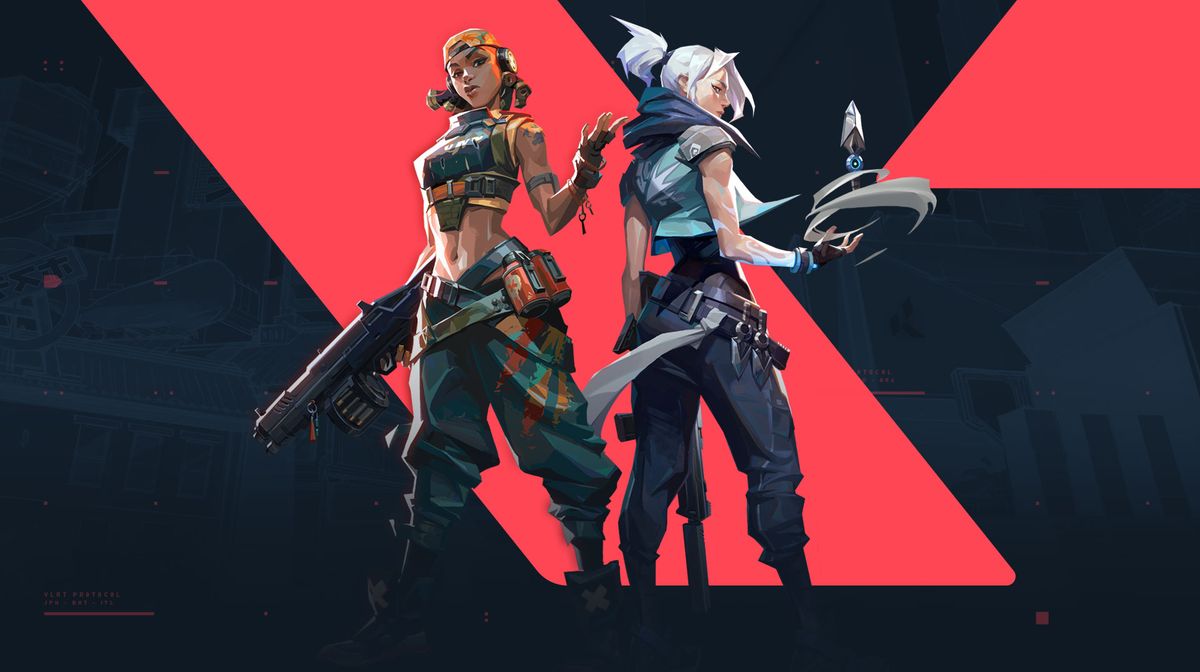

Valorant has seen its share of ups and downs since its launch in 2020 by Riot Games but it's currently one of the most downloaded games globally due to its accessibility and thriving esports scene. However, players encounter issues, particularly bugs and glitches, on a regular basis, like with any other game in this genre.
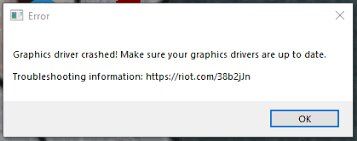
One of the most common problems that exists in Valorant is the "Graphics Driver Crashed" error which can be very frustrating as it can crash your game during matches and no one wants that, especially if you're on a killing spree. If you're having issues with this annoying issue, here's a guide on how to fix it.
How to fix the "Graphics Driver Crashed" error in Valorant?
The graphics driver error is a unique issue that happens while the game is running. Unlike errors caused by missing files during Valorant's installation, this error allows the game to start but can lead to an immediate crash in specific scenarios.
Players experiencing this problem often notice that the game is laggy and prone to frequent crashes. The root cause of this error is usually a buggy or outdated graphics driver.
However, before you do anything, ensure that your system meets the minimum requirements for Valorant. If the answer is yes, then follow these steps:
- Download the latest graphics card drivers for your respective GPU
- After the download completes, open the file from its saved location.
- When it launches, select 'install' to begin the setup process.
- Click 'next' until the graphics driver update is complete.
If these steps don't work, then you can try this method:
- Right-click on your desktop and select 'NVIDIA Control Panel.'
- Go to 'Manage 3D settings' on the left, then open the drop-down menu under 'Global Settings.'
- Choose 'High-performance NVIDIA processor' as your preferred graphics processor, and click 'Apply.'
- Next, open the drop-down menu under 'Program Settings' and look for VALORANT (if it’s not listed, click 'Add' and locate its installation folder).
- Again, select 'High-performance NVIDIA processor,' and click 'Apply.'
- Then, go to 'Set PhysX configuration' (on the left), open the drop-down menu, and choose your NVIDIA card.
- Click 'Apply' and restart your PC.
These solutions should resolve the VALORANT graphics driver crash error. If the issue continues, try uninstalling and reinstalling VALORANT. If the problem persists, you should contact Riot Support for further assistance.
DON'T MISS: