Trending

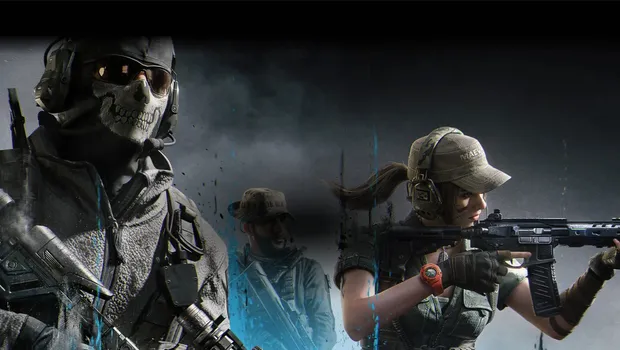
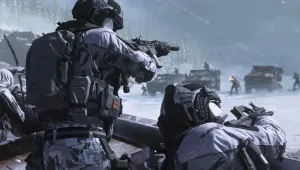
The highly anticipated release of Call of Duty: Modern Warfare 3 is just around the corner, promising a thrilling sequel to the beloved Modern Warfare 2.
This new installment boasts a range of enhancements, both in terms of graphics and gameplay. Additionally, since 2022, console players have the freedom to customize their visual preferences.
One notable advancement introduced with the PlayStation 5 is its compatibility with 120 Hz refresh rates. This enables gamers to experience titles at a silky-smooth 120 frames per second (FPS). Notably, many contemporary next-gen games are optimizing their PlayStation 5 versions to offer 120 FPS performance modes.
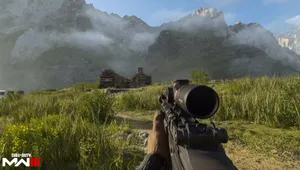
Preparation: Ensure a 120 Hz Monitor
Before diving into the settings, it's crucial to confirm that your gaming setup includes a monitor with a refresh rate of 120 Hz or higher. With this requirement met, you're all set to enable 120 FPS gaming.
Step-by-Step Guide: Enabling 120 FPS
- Power on your PlayStation 5 and head to the "Settings" menu.
- Scroll down and locate the "Screen and Video" option.
- In the "Screen and Video" section, navigate to the "Video Output" tab.
- Within this tab, select "120 Hz Output."
- Ensure the setting is configured to "Automatic."
- Finally, launch Modern Warfare 3, and you'll be immersed in the smooth 120 FPS gameplay experience.
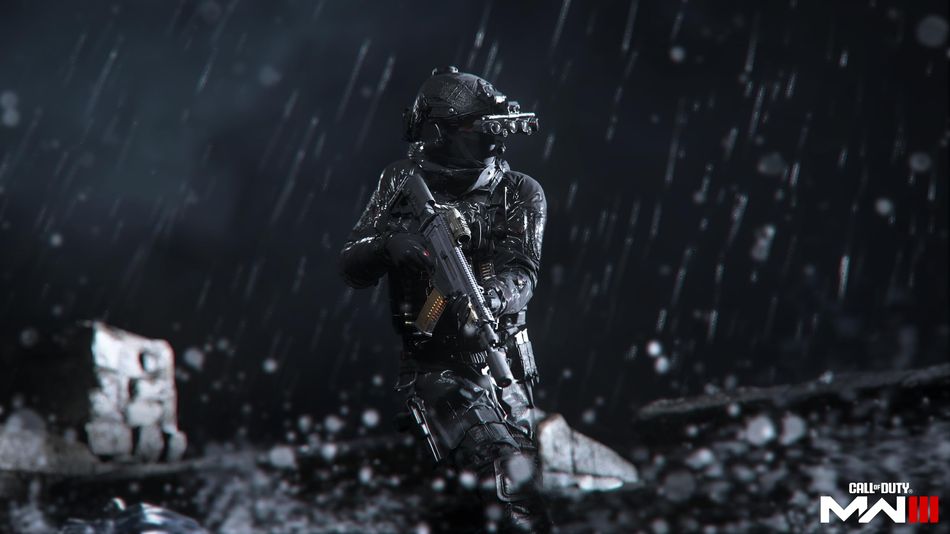
Black Screen and Resolution
Upon initiating Modern Warfare 3 after enabling 120 FPS, you may encounter a brief black screen. This is merely the PS5 adapting to the new 120 FPS setting.
Furthermore, it's important to note that the resolution may be capped at 1080p for most applications, as only a select few support 120 FPS at a 1440p resolution on the PS5.
Resolution for FPS Troubles
In the event that native 120 FPS in-game performance isn't achieved, a simple workaround exists. Delete the saved data of Modern Warfare 3 from your storage and restart the console.
This straightforward fix should resolve the issue, allowing you to enjoy Modern Warfare 3 in all its 120 FPS glory.
DON'T MISS:
- Call of Duty; Modern Warfare 3 early access pre-load start time
- Call of Duty: Modern Warfare 3 PC specs and features revealed
- Call of Duty Modern Warfare 2 and Warzone - Official 'The Haunting' Trailer
- Call of Duty Modern Warfare 3 - Cutthroat 3v3v3 game mode explained
- Streamer Ninja insults Call of Duty fans for falling for Modern Warfare 3 hype