Trending
When the Goldflake error code surfaces in Call of Duty: Warzone 2 or Modern Warfare 2, it typically indicates server overload, preventing your login or gameplay.
It might even appear while you're in-game but have left your console in standby mode, anticipating a later match.
Fortunately, instances of this code interrupting ongoing matches and booting you out of Warzone appear to be infrequent.
Goldflake error Xbox fixes
- Update your console and game through Settings > System > Updates > Update, and My games & apps > Games > Call of Duty: Modern Warfare 2 > Manage game and add-ons > Update > Update all.
- Clear persistent storage through Settings > Device & connections > Blu-ray > Persistent storage > Clear persistent storage.
- Clear alternate MAC address via Settings > General > Network settings > Advanced settings > Alternate MAC address > Clear > Restart.
- Uninstall and reinstall MW2 through Settings > System > Updates > Update, and My games & apps > Games > Call of Duty: Modern Warfare 2 > Uninstall > Reinstall.
- Some users suggest purchasing an Xbox Live Gold subscription may help.
Goldflake error PC fixes
- Connect to a VPN using a free service like Proton VPN.
- For Battle.net, change your region by clicking the globe icon and try relaunching MW2.
- For Battle.net, navigate to MW2, click on the settings icon, select "Scan and Repair," and try launching MW2 again.
Activision
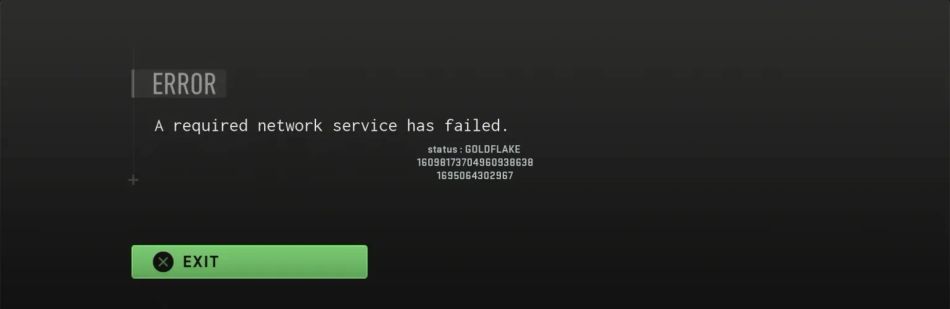
Here is how to fix the Goldflake error for PC, Xbox and PS4 and PS5
Goldflake error PS4 and PS5 fixes
- Access PS4's settings menu > Network > Set Up Internet Connection.
- Choose Wi-Fi or LAN, set IP address to Custom, DHCP Host Name to Do Not Specify, and DNS settings to Manual.
- Use Primary DNS: 1.1.1.1 and Secondary DNS: 1.0.0.1.

DON'T MISS:
- Call of Duty: Warzone 2 - Fort Resurgence explained
- How to fix error code 14515 in Call of Duty: Warzone 2.0 and Modern Warfare 2?
- Call of Duty: Warzone 2.0 - Best weapons in Season 5 ranked
- Call of Duty: Warzone 2.0 - Best sniper loadouts in Season 5
- Call of Duty: Warzone 2.0 - Best PC settings for high FPS, graphics and visibility in Season 5
Call of Duty: Modern Warfare 2 - New maps