Trending
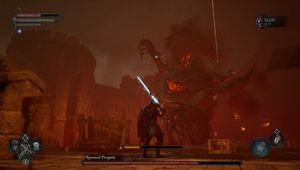
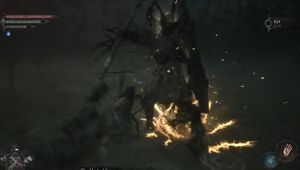
Lords of the Fallen launched with a very underwhelming HDR implementation on PlayStation 5, resulting in a washed-out picture that doesn't do the game's visuals any justice.
Hexworks are probably working on a fix as we write this article but while we wait for the official patch to address the issue, there are a couple of things you can do on your own to make the game look better.
The fix, which has been shared by Redditor metalpunks, does indeed make the game look crispier and like it actually utilises HDR. Read on below for the instructions on how to make Lords of the Fallen look better on PlayStation 5.
How to fix HDR in Lords of the Fallen on PS5
- Turn off HDR in your PlayStation 5 settings
- Go to the in-game settings and turn off Chromatic Aberration and Motion Blur. You can turn off Film Grain too if you don't like it.
- Go to the picture settings and set Contrast to at least 65 and turn brightness down one or two notches.
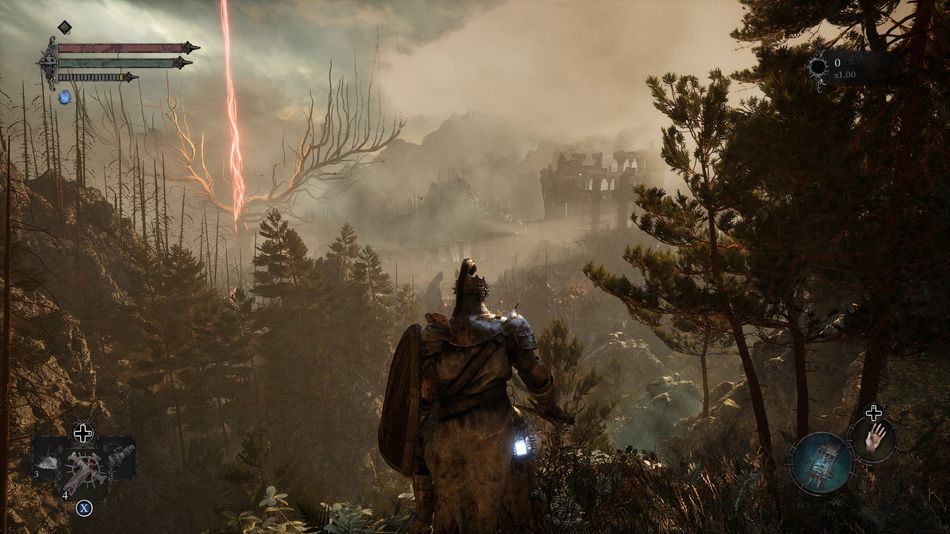
If you followed the instructions closely and did everything right, Lords of the Fallen should now look much better on PlayStation 5, with darker blacks and better colours overall. The image should also look crispier overall.
Obviously, this is not an ideal solution and cannot replace a true HDR implementation but it's certainly better than having a washed-out image. Hopefully, Hexworks will provide a fix to this issue on PS5 sooner rather than later.
If this guide was helpful, check out more Lords of the Fallen content below.
LORDS OF THE FALLEN CONTENT
- Lords of the Fallen: Tortured Prisoner side quest solution
- Lords of the Fallen: Ruiner boss fight tips and video walkthrough
- Lords of the Fallen - How to get to the top of the Tower of Penace?
- Lords of the Fallen - List of all bosses
- Lords of the Fallen: How to get mimic items protected by Umbral Entities