Trending
Marathon is the newly released extraction shooter from Bungie. Set in a futuristic post-apocalyptic setting, Marathon is a fast-paced extraction shooter with high stakes.
While Marathon is not essentially a competitive shooter, you need to put out your best performance if you want to make it alive with your backpack full of loot. To dominate other players, you must first make sure that your game's performance is at its optimal potential.
If you're looking to boost your FPS or make your gameplay smoother in Marathon, then here are the best video settings you should consider using in Marathon.
Read More

Marathon - How to Spend Silk
Best Video Settings in Marathon for More FPS
Bungie is using their iconic Tiger engine to run Marathon, which unfortunately makes players go through inconsistent frame rates, CPU bottlenecks, and other various issues. Like Destiny 2 from Bungie, Marathon is also a CPU-heavy game.
However, you can easily counter these issues by running the game at optimal video settings. Here's a look at the video settings you can mix and match to boost your performance in Marathon:
Video Settings:
- Window Mode: Fullscreen
- Resolution: Match with your monitor's maximum resolution
- V-Sync: Off
- Framerate Cap Enabled: On
- Framerate Cap: Match with your monitor's maximum refresh rate
- Field of View: 100
- Brightness: Adjust to your liking
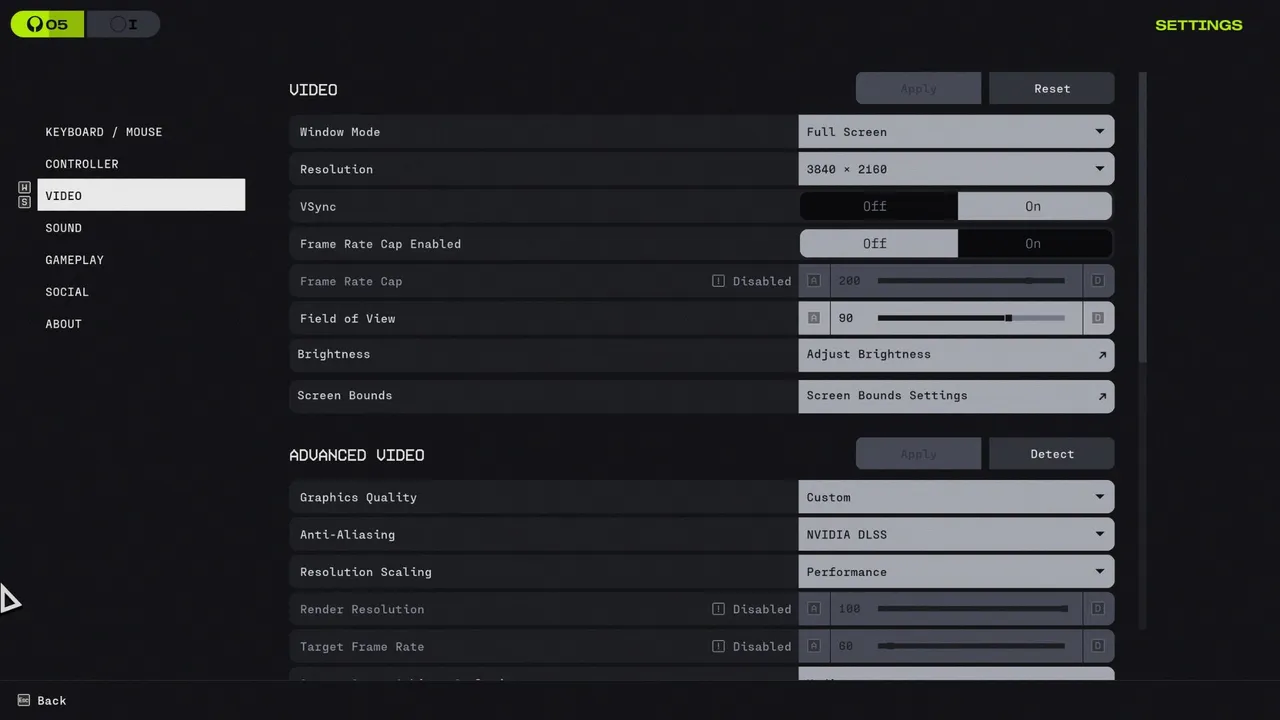
Advanced Video Settings:
- Anti-Aliasing: NVIDIA DLSS
- Resolution Scaling: DLAA
- Render Resolution: Disabled
- Target Frame Rate: Disabled
- Screen Space Ambient Occlusion: Highest
- Texture Anisotropy: 16x
- Texture Quality: High
- Shadow Quality: High
- Environment Detail Distance: Medium
- Character Detail Distance: Medium
- Foliage Detail Distance: Medium
- Light Shafts: Medium
- Motion Blur: Off
- Chromatic Aberration: Off
- NVIDIA Reflex: On+Boost
Now aside from adjusting video settings, there are a few more things you should follow to make your gameplay experience much more streamlined. Firstly, download and run Marathon on an SSD if possible. Like almost all AAA titles nowadays, Marathon performs better when you run the game from an SSD.
As the game still uses their 20-year-old Tiger engine, which has been the barebones behind titles like Halo and Destiny, expect to see high CPU usage in Marathon. Especially, you might encounter some performance issues here and there after game updates, such as frame rate drops or longer loading times, which can affect your overall gaming experience. Lastly, keep your drivers updated to get the best performance in Marathon.

DON'T MISS:











![Marathon: Protect/Destroy [5/5] Quest Guide](https://media.altchar.com/prod/images/gm_medium_thumbnail/10ff401bb757-2026marathonlaunchpresskitcompressed004.webp)
![Marathon: Protect/Destroy [4/5] Quest Guide](https://media.altchar.com/prod/images/gm_medium_thumbnail/23cc0ff4f9ce-2026marathonlaunchpresskitcompressed002.webp)
![Marathon: Protect Destroy [3/5] Quest Guide](https://media.altchar.com/prod/images/gm_medium_thumbnail/b19c6f6d7c20-marathonlaunchcinematicselects01.webp)
![Marathon: Protect Destroy [2/5] Quest Guide](https://media.altchar.com/prod/images/gm_medium_thumbnail/b2685c265f9d-marathonlaunchcinematicselects03.webp)
![Marathon: Protect Destroy [1/5] Quest Guide](https://media.altchar.com/prod/images/gm_medium_thumbnail/9c843d59642a-marathon-protectdestroy-1.webp)