Trending
Now, if you’re having the same problem, don’t worry, because we’ve put together a troubleshooting guide that should help you. PC games have had flickering, tearing, or freezing of the screen for a long time. No matter what game you’re playing, you might run into these problems more than once.
If your Apex Legends freeze or tears while playing multiplayer, during specific sessions, or even at specific checkpoints, you should check your internet connection. These issues are sometimes caused by how the graphics are configured in the game.
EA and Respawn Entertainment recommend to double-check the Apex Legends game's V-Sync setting, as this can cause a lot of trouble for some PC games. So, try each method until the problem is resolved. Let's not waste any more time and get started.
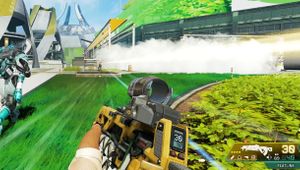
To activate the Vertical Sync feature in Apex Legends, use the Nvidia Control Panel app. This will help to keep the graphics as stable as possible.
You should first try turning down the graphics settings in the game on your PC or console to see if that fixes the frame drops or stuttering. This should increase the FPS and make the game run better and smoother.

Another thing you can do is close any unnecessary background tasks on your PC to ensure they aren't consuming any more system resources.
If your Windows system is set to Balanced in Power Options, simply change it to High-Performance mode for better results. PC gamers should always update their Windows OS build to prevent bugs, incompatibilities, and crashes.

DON'T MISS:
- Teamfight Tactics 12.21 Patch Notes and Highlights
- League of Legends: 12.21 Patch Notes - K'Sante Introduction, New skins, Buffs, Nerfs and more
- Valorant Soulstrife skin bundle: First look, price, release date and more
- Does Valorant have rootkits similar to those of Undecember?
- League of Legends: Hans Sama reportedly joining G2 Esports