Trending

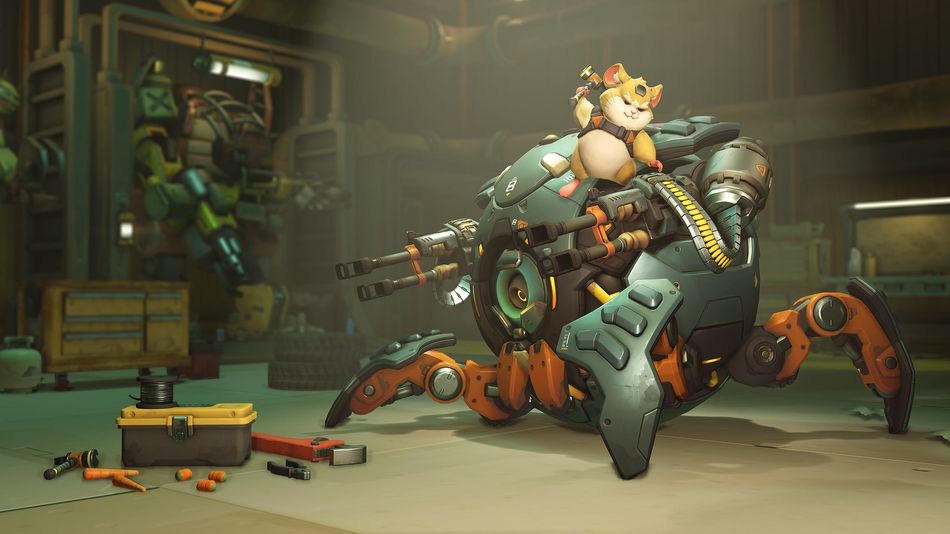
Overwatch 2 is currently riddled with bugs and issues. Of all of them, one causes issues when you attempt to use voice chat. That issue is called the voice chat 1002 error, which removes you from in-game voice chat all together.
This can be particularly frustrating in competitive matches, where communication is crucial. Although Overwatch 2 offers a ping system, some situations are better explained through voice chat.
If you are looking to troubleshoot the Overwatch 2 voice chat 1002 error, then just follow the following methods and our easy-to-follow instructions.
How to Solve the voice chat error 1002 in Overwatch 2
Here are some methods of solving this issue:
Method 1:
1. Open Network Connections:
- Type "Network Connections" in your system's search bar to find it.
2. Change Properties:
- Right-click your currently active network and select "Properties."
- Scroll through the list of items and find "Internet Protocol Version 6 (TCP/IPv6)."
- Uncheck the box next to "IPv6."
3. Confirm and Restart:
- Press "OK" to confirm your changes.
- Afterward, restart your game and see if voice chat works again.
If this doesn't resolve the error, you can use a tool in the Battle.net app to scan and repair Overwatch 2.
Method 2:
1. Open Battle.net:
- Launch the Battle.net app.
2. Scan and Repair:
- Click on the gear icon (settings) beside the "Play" button for Overwatch 2.
- Select "Scan and Repair."
- Follow the prompts to complete the process.
This feature checks for corrupted files and attempts to repair them, which might fix issues affecting voice chat.
Now, click the "Scan and Repair" button and wait until the process is done. This will re-download and fix any missing files in the game.
Method 3:
If all of the above methods can't resolve the issue, you can try:
- Updating your audio driver
- Changing your network connection
- Reinstalling Overwatch 2
If none of these work, it could be a server issue or maintenance. Check the Overwatch 2 server status to confirm.
Usually issues like this get solved with the next patch, so if any of our methods don't work, all you can do is wait for the next patch to resolve the issue for now.
DON'T MISS:
- Overwatch 2 Game Pass guide: How to unlock Ultimate skins
- Overwatch 2 players are facing severe queue delays after recent updates
- Overwatch 2: Mirrorwatch event - Details, abilities, heroes, challenges, rewards and more
- Overwatch 2 Season 11 - New heroes, maps and more
- Overwatch's profanity filter is backfiring and causing major issues