Trending

If it is the case that you're playing the PC version of Senua's Saga: Hellblade 2, you can easily turn off ultrawide forcing, as well as a bunch of other image distortion effects and here is how.
Senua's Saga: Hellblade 2, developed by Ninja Theory, is a graphically very attractive and demanding game, but some players may be disappointed by the fact that it does not allow turning off certain effects that make the image blurry, as well as forcing the ultrawide image format.
If you are on PC, this could be easy fixed, and we got some possible ways to never encounter these issues again.
You need to go to the following directory:
- C:\Users\[username]\AppData\Local\Hellblade2\Saved\Config\WinGDK
The AppData folder is usually hidden so you need to turn on show hidden file folders in Windows Explorer settings to see it.
In that directory, you need to find the engine.ini file and open it with Notepad or a similar program. And then you can add the following lines to the end of the document (and save the changes in the document):
- [SystemSettings] r.NT.EnableConstrainAspectRatio=0
- r.NT.AllowAspectRatioHorizontalExtension=0
This will allow you to play in 16:9 aspect ratio, without black borders at the top and bottom of the screen. Just keep in mind that this can negatively affect the performance of the game itself, and Hellblade 2 isn't really designed to be played on such a display either. You can, if you really want to, but know that it's not designed for that.
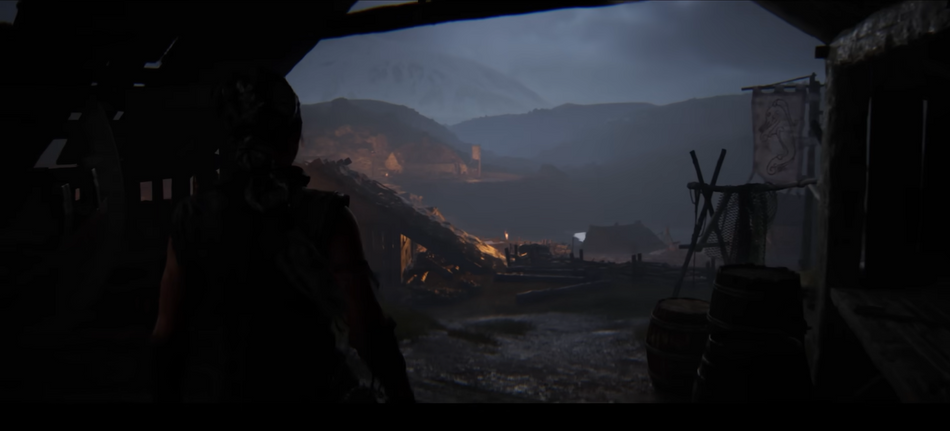
On the other hand, if you want to turn off the blurring options, which is not possible within the game itself, add the following lines to the end of the same document and save the changes:
- r.NT.Lens.Distortion.Intensity=0
- r.NT.Lens.Distortion.Stretch=0
- r.NT.Lens.ChromaticAberration.Intensity=0
- r.NT.DOF.RotationalBokeh=0
- r.NT.DOF.NTBokehTransform=0
DON'T MISS:
- Senua's Saga: Hellblade 2: All lorestangir locations
- Microsoft have already greenlit Hellblade 3, it's claimed
- Senua's Saga: Hellblade 2 scores 82 out of 100 on Metacritic; media praise visuals but criticise outdated gameplay
- Senua's Saga: Hellblade 2 Review - Emotional, brutal and unforgettable
- Senua's Saga: Hellblade 2: How to solve the runes puzzle inside the dead settlement