Trending

Valorant, a highly popular FPS hero shooter from Riot Games, debuted in 2020 and has swiftly evolved into a prominent esports title, hosting various events and competitions. Inspired by elements from both Counter-Strike and Overwatch, Valorant is a tactical 5-on-5 shooter where teams engage in round-based plant-and-defuse scenarios.
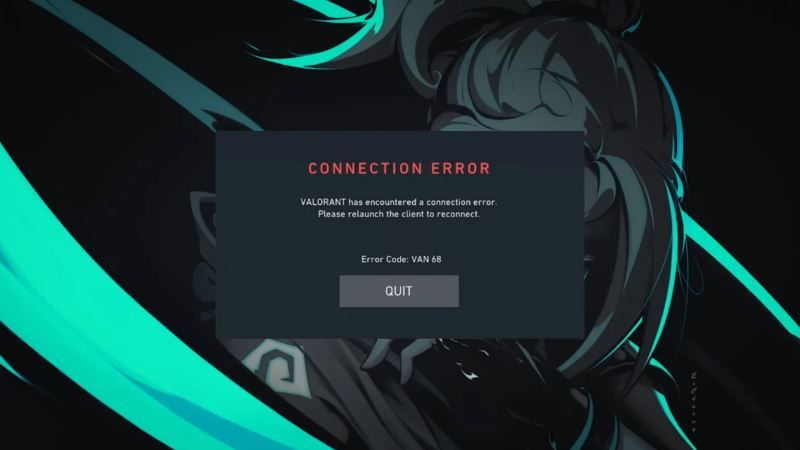
As with any competitive game, running into errors is something you don't want, especially during a game. So today we are going to address one of the most common errors Valorant players face, the VAN 68 error, and offer several straightforward solutions to resolve it.

What is the VAN 68 error in Valorant?
Encountering the VAN 68 connection error in VALORANT can be frustrating, as it blocks you from entering a match or even starting the game. This issue arises due to a network problem disrupting communication between your computer and the VALORANT servers.
All Possible Solutions For VAN 68 ERROR In Valorant
Allow Valorant In Firewall
Occasionally, your firewall might block VALORANT's communication with the servers, leading to the VAN 68 error. Allowing VALORANT through your firewall can resolve this issue by granting it the necessary permissions to function properly.
To do this, follow these steps:
- Begin by typing “firewall” in the search bar and selecting “Firewall and Network Protection.”
- Click on “Allow an app through firewall,” followed by “Change settings.”
- Choose “Allow another app” and click “Browse” to navigate to Valorant’s installation directory.
- Open the VALORANT folder, then proceed to “live,” “ShooterGame,” “Binaries,” and “Win64.”
- Select “Valorant-Win64-Shipping” and confirm by clicking “OK.”
- Click “Add,” ensure the box next to VALORANT is checked, and click “OK” again.
- Restart your computer to apply the changes and resolve the VAN 68 error.
Change the DNS Server
At times, your default DNS server may prove sluggish or unreliable, hampering your connection quality. Switching to a different DNS server can mitigate these issues by opting for a swifter and more dependable service.
- Open the command prompt on your computer.
- Type "ping 1.1.1.1" and note down the ping values that you receive.
- Repeat the process with "ping 8.8.8.8" and compare the ping values with the previous one.
- Now, go to your computer's Settings menu and select "Network and Internet," then choose "Ethernet."
- Click on "Edit DNS server assignment" and opt for "Manual" settings.
- Ensure that IPv4 is enabled if it's currently disabled.
- In the "Preferred DNS" field, enter the DNS server with the lowest ping from the earlier tests.
- For the alternative DNS, use "100.1.1.1" if you've chosen "1.1.1.1" as the preferred DNS, or "8.8.4.4" if you've selected "8.8.8.8."
- Click "Save" to apply the changes.
- Finally, relaunch Valorant to see if the VAN 68 error persists.
Empty Your DNS
Emptying your DNS cache is the most efficient method to resolve the VAN 68 error. The DNS cache, responsible for translating domain names into IP addresses, can become corrupted or outdated, leading to network issues. By flushing your DNS, you clear the cache and renew your connection, addressing these problems effectively.
- Open the command prompt as an administrator. (Type CMD in the search bar, right-click on Command Prompt, and select “Run as administrator.”)
- Confirm permission by clicking “Yes” if prompted.
- In the command prompt window, type ipconfig/flushdns and press Enter.
- Verify the message “Successfully flushed the DNS resolver cache.”
- Close the command prompt window.
- Check if the VAN 68 error persists in VALORANT.

If all these solutions don't work, there is still hope, you can try reinstalling the game or verifying game files. Hopefully that will be enough and you'll have an error-free gaming experience.
DON'T MISS: