Trending
When it comes to shooters, frames per second (FPS) are quite crucial. Increasing your Call of Duty: Warzone 2 FPS will allow you to react more quickly in-game and strike more targets.
When playing on PC, the quality of your game is determined by both your setup and how you run the game. If you want to improve your performance in Activision's new title - Call of Duty: Warzone 2, raising your FPS will make a significant impact.
If you want the best Call of Duty: Warzone 2 FPS, you'll have to put up with fewer dazzling visuals. Graphics and effects are demanding; by reducing them, you may get a considerably higher frame rate. You can achieve a good FPS even if you don't have the best equipment.

Here is how you should set up your PC for the maximum FPS in Call of Duty: Warzone 2.
- Display Mode – Fullscreen
- Display Adapter – Use your GPU
- Screen Refresh Rate – Matching your monitor’s refresh rate
- Render Resolution – 100. Going up from this will increase the load on your CPU, even downscaling causes graphical issues
- Aspect Ratio – Your screen’s native ratio
- Frame Rate Limit – Unlimited
- Nvidia Highlights – Disabled
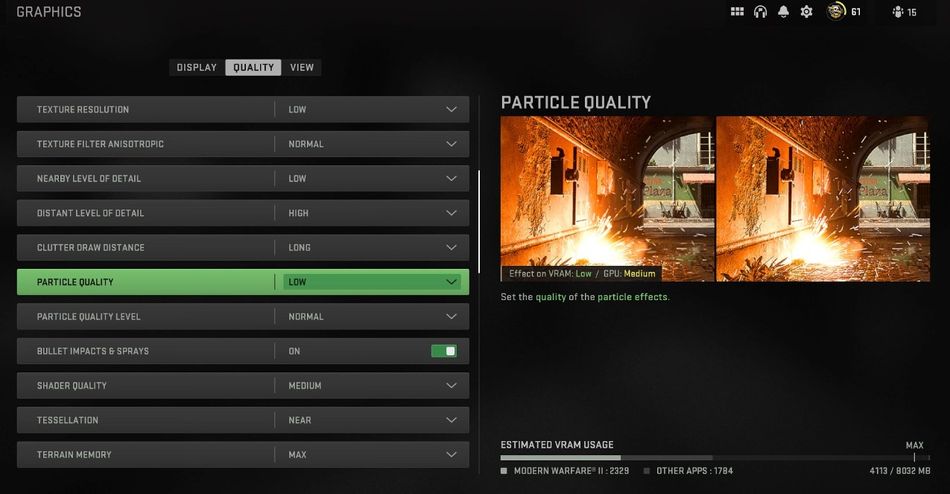
Also, you will need to lower your graphics settings a bit. This should give you more responsiveness in the game.
- Textures – Low
- Texture Filter Anisotropic – Low
- Particle Quality – Low
- Tessellation – Low
- Shadow Map Resolution – Low
- Cache Spot Shadows – Disabled
- Cache Sun Shadows – Disabled
- Particle Lighting – Low
- DirectX Raytracing – Disabled
- Ambient Occlusion – Disabled
- SSR – Disabled
Post-processing effects need to be turned off as well. These game filters aren't that important, but they can drain your PC performance.
- Anti-Aliasing – Off
- Depth of Field – Disabled
- Filmic Strength – 1
- World Motion Blur – Disabled
- Weapon Motion Blur – Disabled
- Filmic Strain – Off
DON'T MISS: