Trending

Battlefield 6 is a pretty competitive game that requires players to put out their best performance to win matches in game modes like Conquest and Breakthrough. However, to put out your best performance, you need to have decent video settings optimisation to get the highest FPS count.
If you're serious about doing well in Battlefield 6, then make sure to properly optimise your video settings. Here's a quick rundown of the ideal video settings you need to use in Battlefield 6.
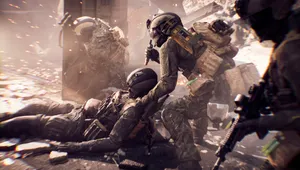
Best Video Settings in Battlefield 6 for More FPS
As Battlefield 6 runs on their in-house Frostbite engine, the game might be unstable for lower-end GPUs. However, if you have enough RAM and a proper CPU, you can easily run the game with the highest optimisation. Here's an overview of the video settings you need to use in Battlefield 6:
- Performance Preset: Custom
- Graphics Quality: Custom
- Graphics: Modify
- Brightness: 50
- Sharpness: 55
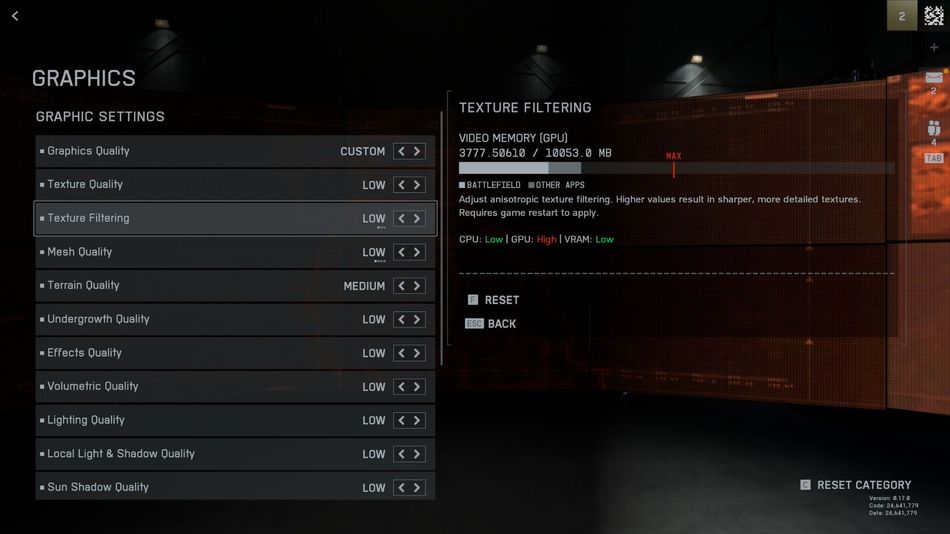
Graphics Settings
- Texture Quality: High
- Texture Filtering: High
- Mesh Quality: Low
- Terrain Quality: Medium
- Undergrowth Quality: Low
- Effects Quality: Low
- Volumetric Quality: Low
- Lighting Quality: Low
- Local Light & Shadow Quality: Low
- Sun Shadow Quality: Low
- Shadow Filtering: PCF
- Reflection Quality: Low
- Screen Space Reflections: Off
- Post Processing Quality: Low
- Screen Space AO & GI: Off
- High Fidelity Objects Amount: Low
Advanced Settings
- Fixed Resolution Scale: 100
- Frame Rate Limiter: Off/On if inconsistent frame rate
- Nvidia Reflex Low Latency: Enabled + Boost
- Upscaling Technique: DLSS for Nvidia GPUs / FSR for AMD GPUs
- Upscaling Quality: Balanced
- Nvidia Frame Generation: Off
- Future Frame Rendering: Off
- Performance Overlay: Off
Camera
- Field of View: 110
- Vehicle 3rd Person Field of View: 86
- Weapon Field of View: Wide
- World Motion Blur: 0
- Weapon Motion Blur: 0
- Camera Shake Amount: 20
- Chromatic Aberration: Off
- Vignette: Off
- Film Grain: Off
As the game is completely built on EA's Frostbite engine to keep the traditional flow of Battlefield titles alive, there are certain stability issues that arise after the game's update. To avoid such problems, make sure to update your graphics drivers regularly and remember to turn off background programmes such as Google Chrome to reduce the consumption of RAM and GPU. If you're facing any issues, like perspective change during a match, make sure to restart your game after applying these settings.
DON'T MISS: