Trending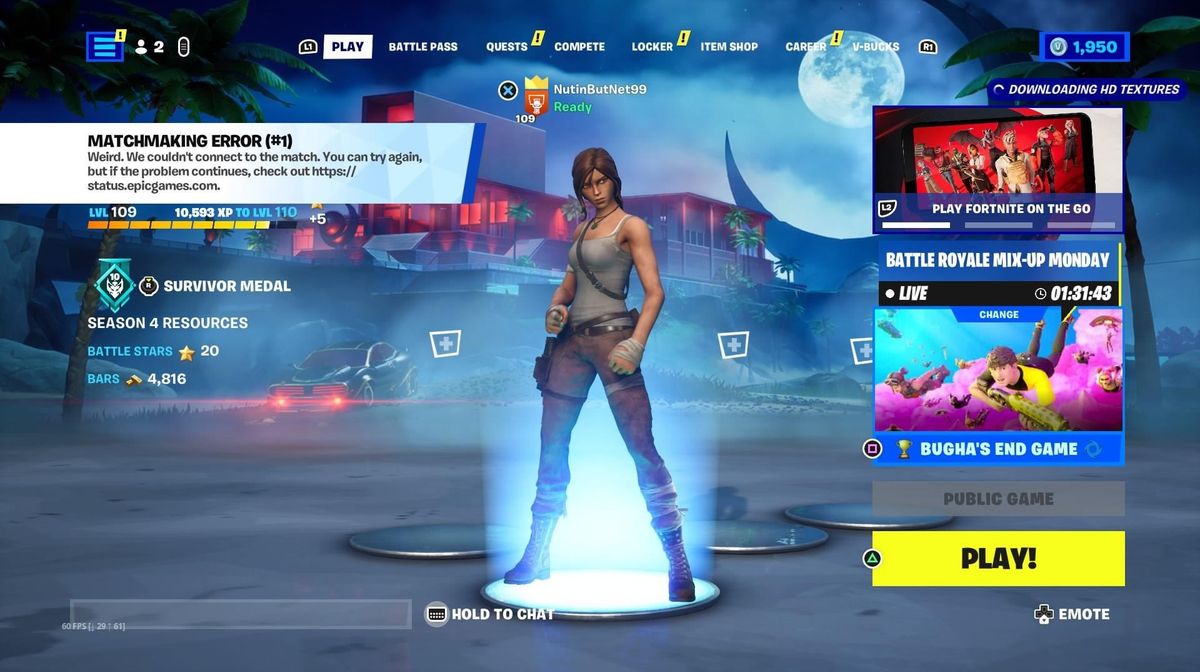

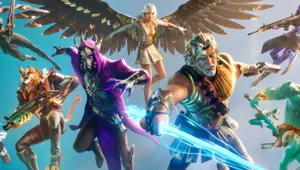
Fortnite Chapter 5 Season 2 has been a massive success for Epic Games, with players tuning in for the new Greek mythology-themed season.
Epic Games has added a new battle pass, game modes, skins, and map changes. Considering the latest content added to the game, some players have faced matchmaking issues since the update's launch. So, if the Matchmaking Error #1 bothers you in Fortnite, here's how to fix it.
How to Fix Matchmaking Error #1 in Fortnite
The Matchmaking Error #1 is a well-known matchmaking issue players have faced since the game's launch in 2017. Usually, with new updates, Fortnite receives tons of new content, including map and UI changes, which lead to connectivity and matchmaking issues. So, after the latest update, if you face the Matchmaking Error #1, here's how you can fix it quickly.
- Restart Fortnite: If you are facing matchmaking issues, we recommend turning off Fortnite and rebooting it again. Restarting Fortnite will reconnect you to the server again, repairing any faulty server link from your or Epic's end.
- Change the matchmaking region from the in-game settings: Head to your in-game settings and check your matchmaking region's latency status. If your latency is high, we recommend switching to another server closer to your location with the best latency.
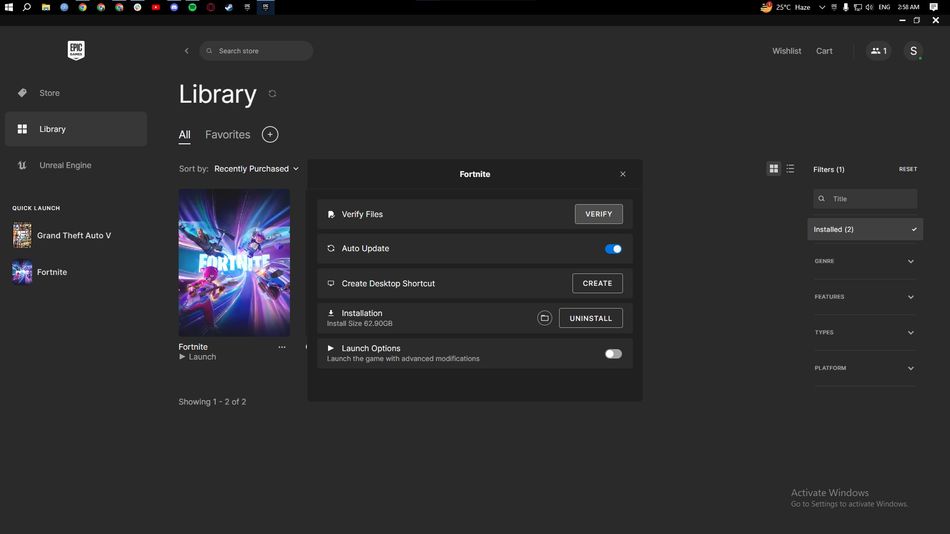
- Verify Game Files from Epic Games: If you're still facing matchmaking issues in Fortnite, follow these steps before starting Fortnite-
- In the Epic Games launcher, click on the three dots below the Fortnite game tab.
- Click on Manage from the newly opened prompt menu.
- Finally, click Verify from the Verify Files tab to check for corrupted files.
- Any corrupted file will now be deleted and re-downloaded.
If matchmaking problems persist, we recommend checking out Fornite's official X account, which will regularly post server updates. In the worst-case scenario, you must wait until Epic Games issues a hotfix.
DON'T MISS:
- Fortnite - All NPC Locations and What they Offer in Chapter 5 Season 2
- Fortnite - How to Find Mod Benches in Chapter 5 Season 2
- Fortnite Chapter 5 Season 2: Players discovered a bug that grants unlimited flying ability
- Fortnite Chapter 5 Season 2 new weapons, outfits and more
- Fortnite - All New and Vaulted Items in Chapter 5 Season 2