Trending
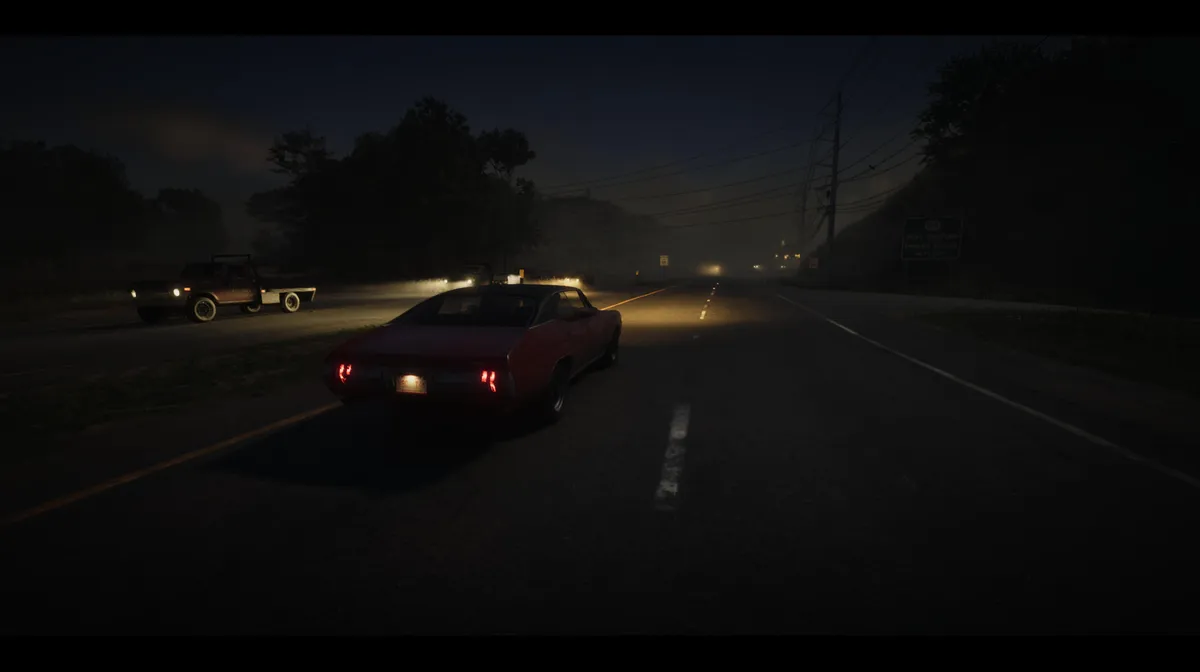
Getting around Grand Theft Auto 6 can take a while, and sometimes you just want to sit back and take in the view. Rockstar Games has you covered. There are two ways to let someone else do the driving: hand the wheel to your partner or switch on auto drive and let the game take over. Here's how both of them work.
1. Let Your Partner Take the Wheel
The first method works whenever Jason and Lucia are travelling together. Hold Right on the D-pad to open the partner menu and ask your partner to drive. They get behind the wheel, and you get to sit back and enjoy the ride while they do the heavy lifting. You can do the switch even during the ride if you get bored of driving. Just switch to the partner, and they will start driving while you can sit back and relax.

2. Give Your Partner Orders
You're not just a passenger, though. Hold Right on the D-pad again during the ride, and you can give your partner a few basic commands. Tell them to speed up if you're in a hurry, pull over when you want to get out, or split up and let them take the car.
3. Set a Waypoint
The second method works whether you're with your partner or on your own. Before you start, open the map and set a destination. Auto drive takes you to your waypoint, so it needs to know where you're going.
4. Get the Car Moving
Get in the car and start driving. This part matters, because the auto drive can't be switched on while you're standing still. If you're parked and try the steps below, nothing happens, so make sure the car is in motion first.
5. Switch to the Cinematic Camera
While driving, hold Down on the D-pad to bring up the camera options, then press the Options button on PlayStation 5 or the Menu button on Xbox Series X|S. This switches you to the cinematic camera, with black bars at the top and bottom of the screen.
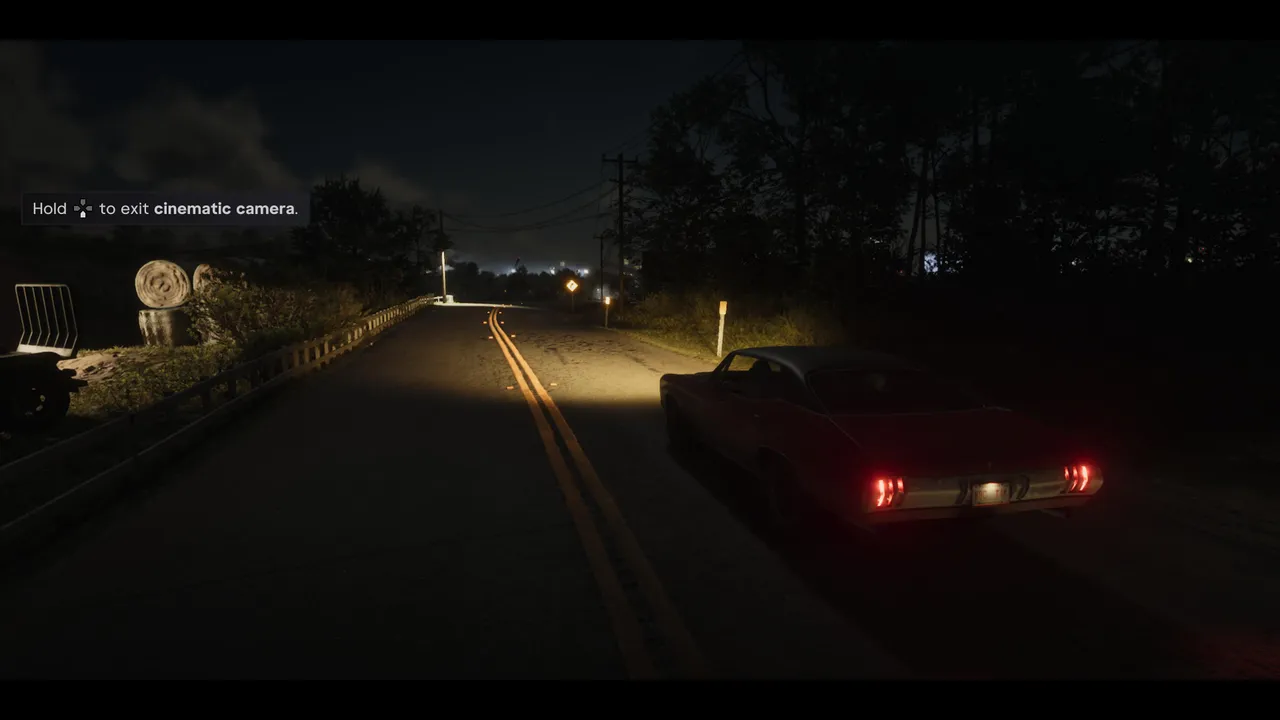
6. Hold Circle to Enable Auto Drive
Once you're in the cinematic camera, an Enable Auto Drive prompt appears in the bottom right corner of the screen. Hold Circle on PlayStation 5 or B on Xbox Series X|S, and the game takes over. Now just sit back and enjoy the ride until you reach your destination.
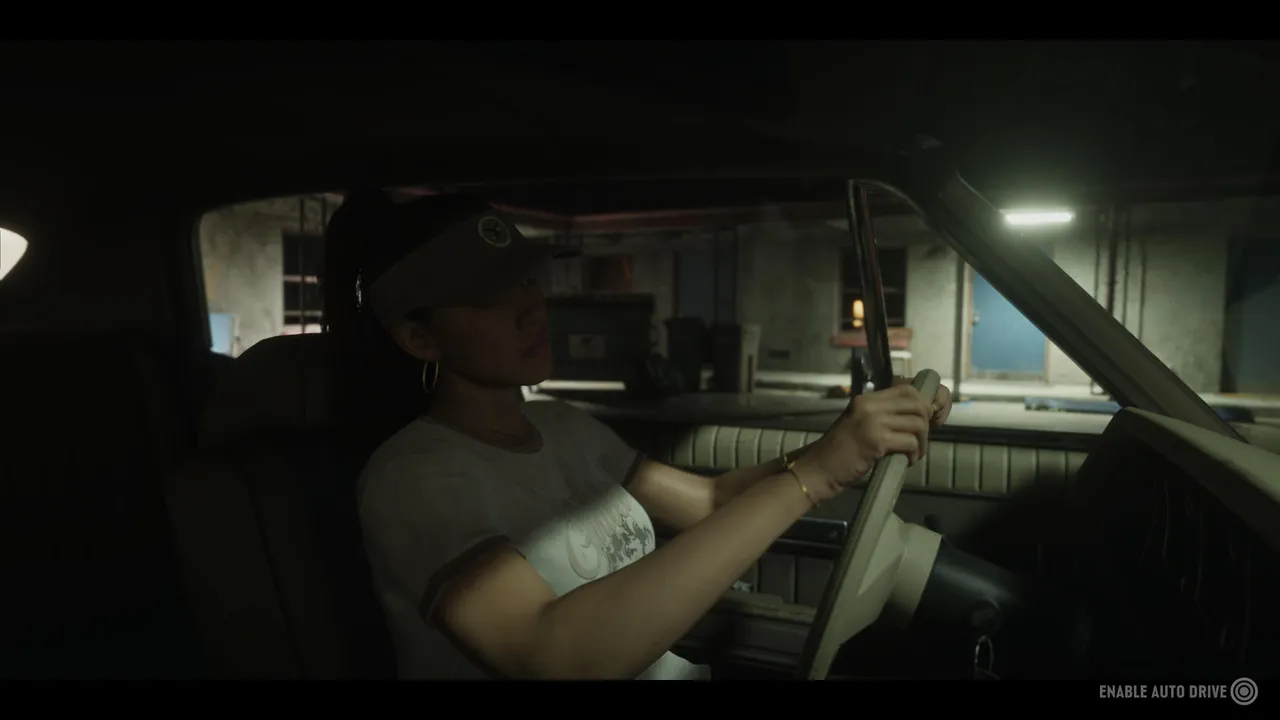
7. Take Back Control
When you want the wheel back, hold the D-pad button shown on screen to exit the cinematic camera, and you're back in charge. You can also use L2 and R2 on PlayStation 5, or LT and RT on Xbox Series X|S, to change your speed while auto drive is on.
Quick Tip: Auto drive sticks to the rules of the road and stops at red lights, so it's slower than driving yourself. Save it for long trips when you're in no rush, and take the wheel back when time matters.
DON'T MISS!