Trending

FragPunk is a pretty competitive game that requires players to put out their best performance to win matches in Quick Match and Competitive. However, to put out your best performance, you need to have decent video settings optimisation to get the highest FPS count.
If you're serious about doing well in FragPunk, then make sure to properly optimise your video settings. Here's a quick rundown of the ideal video settings you need to use in FragPunk.
Best Video Settings in FragPunk for More FPS
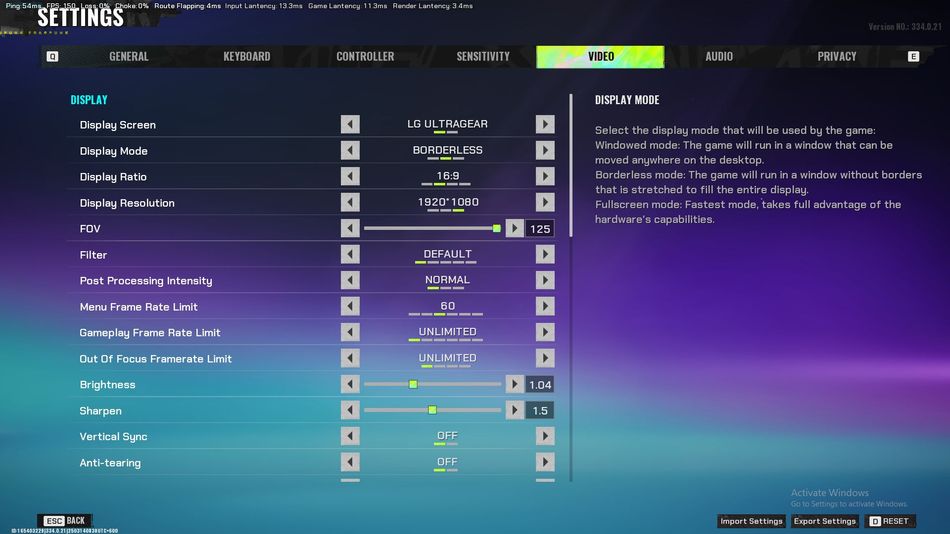
As Marvel Rivals runs on Unreal Engine 5, the game might be unstable for lower-end GPUs. However, if you have enough RAM and a proper CPU, you can easily run the game with the highest optimisation. Here's an overview of the video settings you need to use in FragPunk:
- Resolution: Native (1920x1080 or higher depending on your system)
- Window Mode: Fullscreen
- V-Sync: OFF (To push for more than 60 FPS)
- Frame Rate Limit: Uncapped
- Anti-Aliasing: Low
- Shadows: Low
- Texture Quality: Medium
- Effects Quality: Low
- Post-Processing: Low
- Motion Blur: Off
- Bloom: Off
AltChar
FragPunk: Best Video Settings for More FPS
DON'T MISS: