Trending
Gray Zone Warfare is a realistic extraction shooter from Madfinger Games that has taken the gaming community by storm. The game is currently in early access on Steam with thousands of players jumping into a real world conflict in South Asia.
Like other extraction and tactical shooters out there, Gray Zone Warfare also requires constant communication to complete tasks in-game or to stay alive. Fortunately, Gray Zone Warfare has its own dedicated voice chat (VOIP) system in-game and here's how you can use it to make your time in the conflict zone easier.
How to use Voice Chat (VOIP) in Gray Zone Warfare
Gray Zone Warfare's voice chat (VOIP) is by default set to Push to Talk. By pressing Z on your keyboard you'll be able to communicate with your team mates and other players in your vicinity. Unfortunately, there is no option of customizing the voice chat key bind in Gray Zone Warfare for the time being. The key bind customisation might get added to the game with a future update considering the game's early access status.
If you're voice chat (VOIP) is not working or if you want to disable it here's how you can do it:
- Press Tab to open your inventory.
- Then click on the Gear icon on top right of the screen to interact with the in-game settings.
- After heading into the settings, click on the Audio tab.
- Under the Audio tab, you'll find the following two settings:
- Squad VOIP: This VOIP allows you to communicate with your team mates.
- Proximity VOIP: This VOIP allows you to communicate with other players in your vicinity.
- Now toggle these settings to On or Off to enable or disable the VOIP settings to your preference.
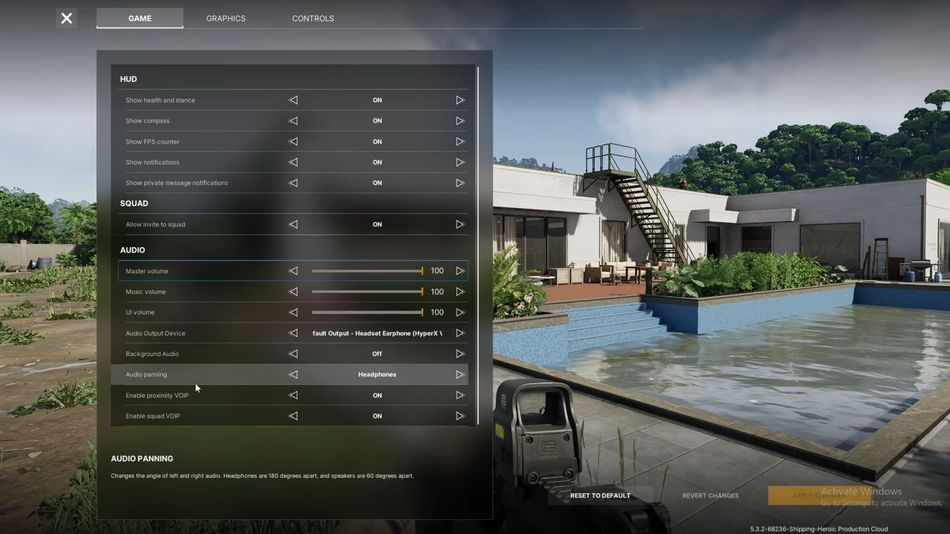
We recommend keeping the VOIP settings turned on as it can help you communicate with your team mates. On the other hand, we also recommend keeping the proximity VOIP settings turned on as that can help your overhear enemy conversation once you are in their vicinity.
DON'T MISS: